
Connect a Google Workspace or Gmail mailbox
Google mailboxes connect with Sign in with Google. There's no password to type, and you can disconnect at any time from your Google account.
Google Workspace organisations have to approve WarmupHero once in the Google Admin console before anyone can sign in. If you aren't a Workspace admin, send this page to yours.
- 1
Choose Google
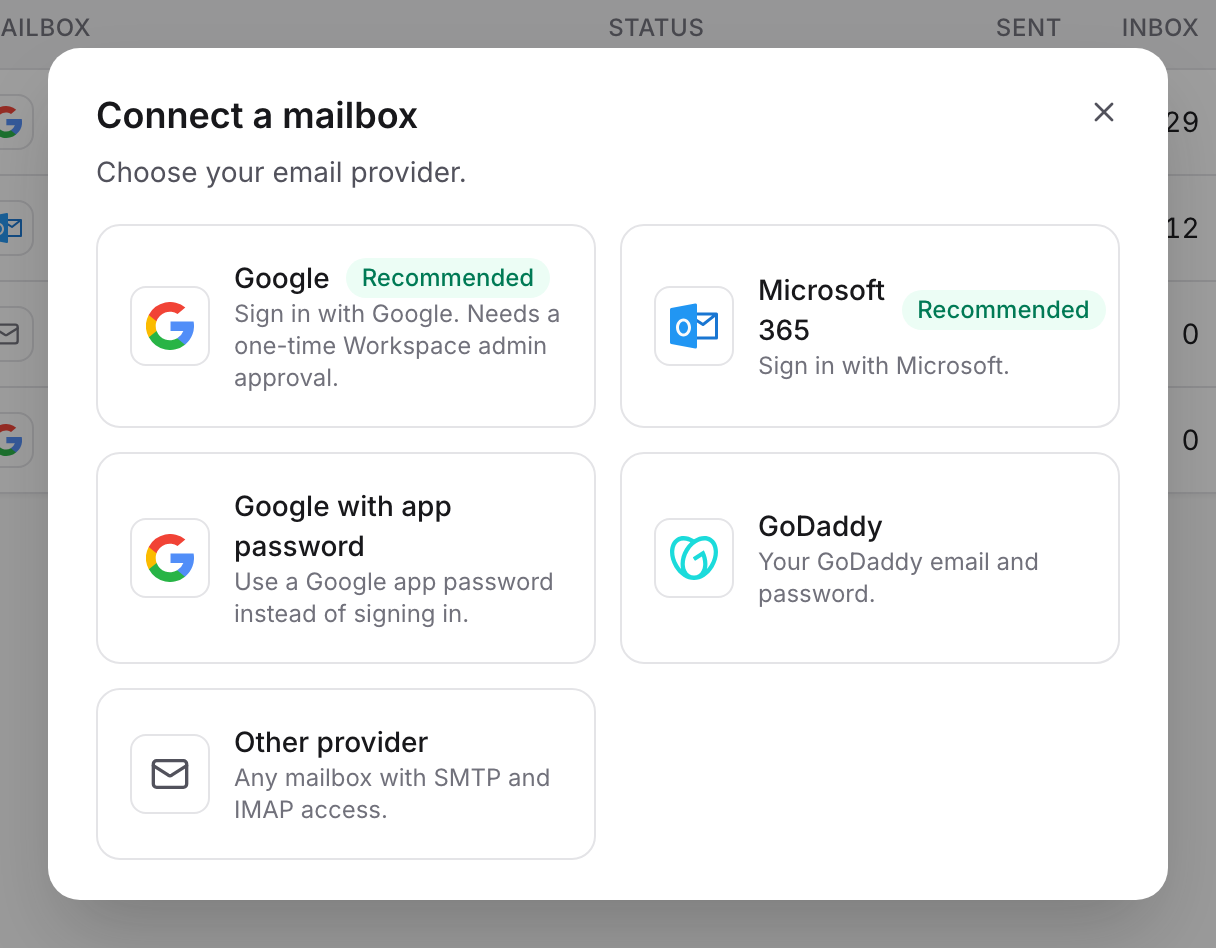
In WarmupHero, click Add mailbox and choose Google.
- 2
Approve WarmupHero in the Google Admin console (Workspace admin, once)
WarmupHero shows the steps and the client ID to use:
- Open the Google Admin console → App access control.
- Click Add app and choose OAuth App Name or Client ID.
- Search with the client ID shown in WarmupHero (use the copy button next to it).
- Select WarmupHero and approve access.
- Under access settings choose Trusted and Configured for entire org.
Already done for your organisation? Skip straight to the next step. Google can take a few minutes to apply the change.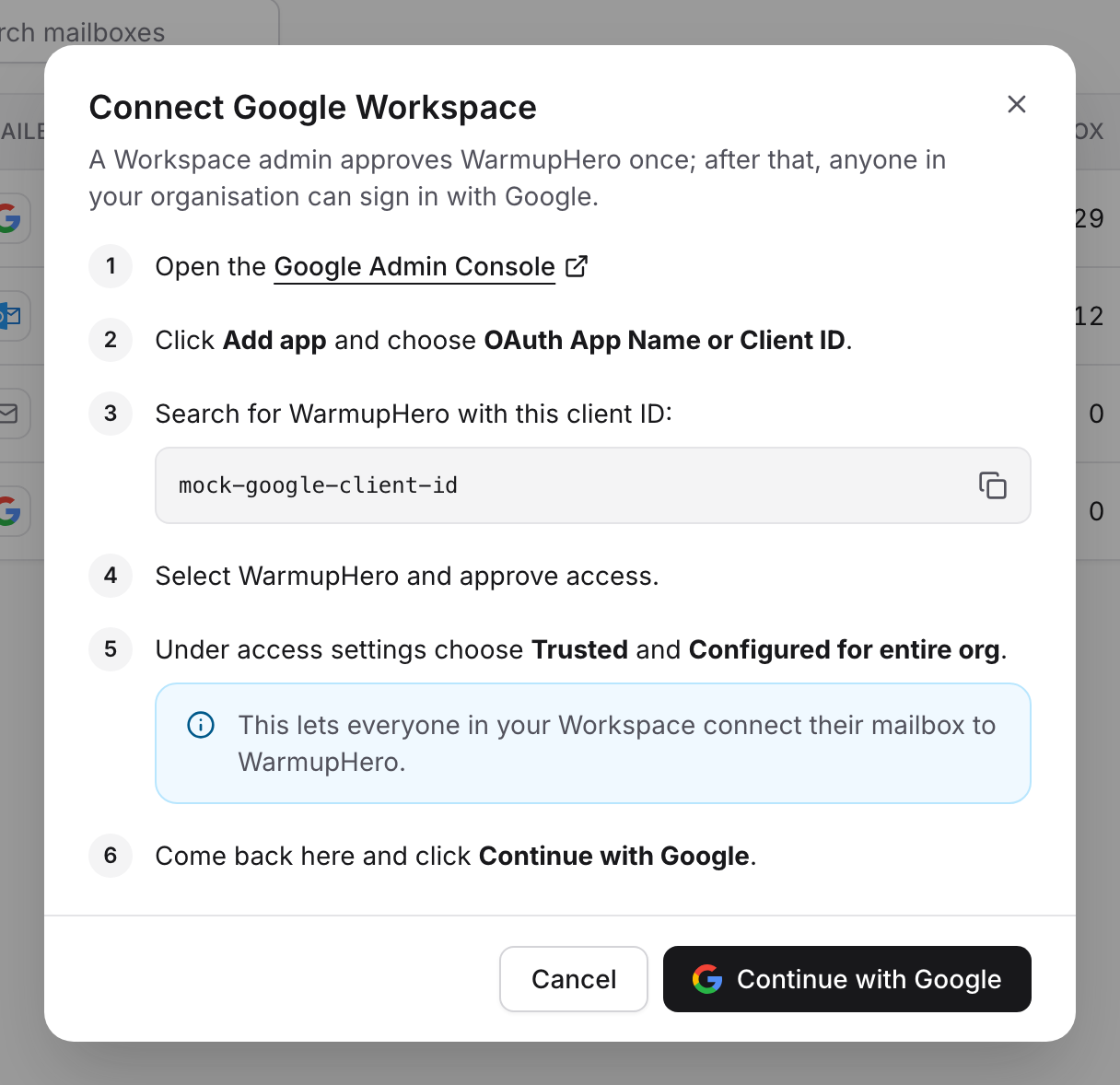
- 3
Sign in with Google
Back in WarmupHero, click Continue with Google, choose the mailbox you want to warm up and allow the permissions Google asks for. WarmupHero needs them to send warmup emails and to check where they land.
- 4
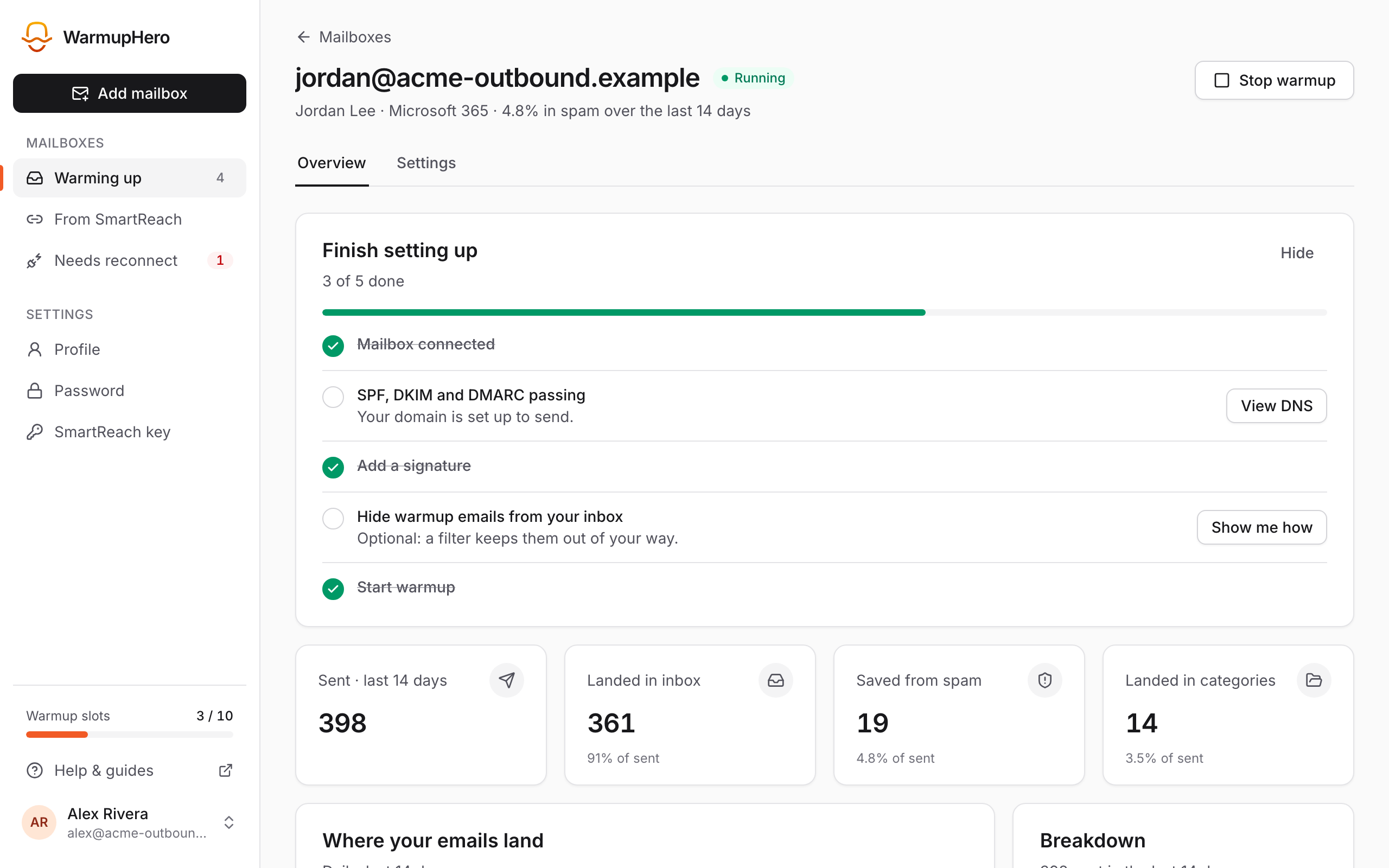
Finish setting up
You land on the new mailbox and warmup starts. The Finish setting up checklist shows what's left: DNS records, a signature and, optionally, a filter for warmup emails.
If Google says access is blocked
Google blocks the sign-in when WarmupHero hasn't been approved for your Workspace yet. Ask your admin to do step 2, or use an app password instead.
Still stuck? Email support@warmuphero.com and tell us which mailbox you're connecting.